If you’re working on keyword research in Google Sheets, you know how tedious it can be to copy‐and‐paste keywords and search volume data manually especially if you need to switch between Chrome tabs and third-party tools.
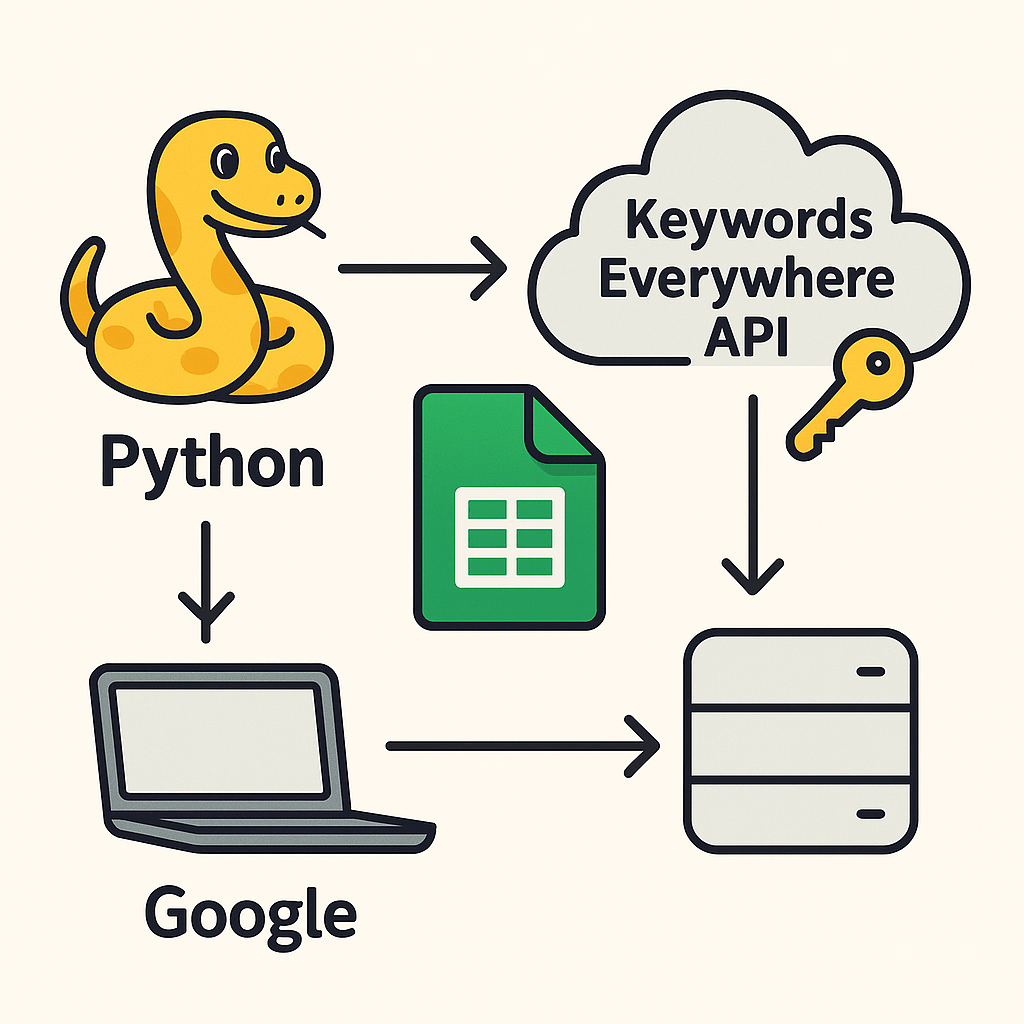
This guide show’s you how to link Google Sheets to the Keywords Everywhere API using Python, fetch search volumes, and automatically paste the output onto your Google Sheet.
There’s a no-code solution using Make to achieve the same or a similar output with various other keyword research tools, but we’ll save explaining that for a rainy day.
What You’ll Learn
- How to read keywords from a Sheet with
gspread - How to call the Keywords Everywhere API using form-encoded requests
- How to write the results back into your spreadsheet
- How to share your Sheet with a service account—manually and programmatically
What You Need
- Python 3.7 or higher
- A Keywords Everywhere account and valid API key
- A Google Cloud service account JSON file (with Sheets API enabled)
- A Google Sheet containing your list of keywords
Grant Your Service Account Access
- Open your
credentials.jsonand copy theclient_emailvalue (e.g.my-sa@project.iam.gserviceaccount.com). - Open your Google Sheet in the browser and click Share (top right).
- Paste that service account email, set its role to Editor, and click Send.
Automated Sharing (Advanced)
If you prefer code to clicks, enable the Drive API and add this at the top of your script:
from googleapiclient.discovery import build
from google.oauth2 import service_account

# Load Drive API credentials
SCOPES = ['https://www.googleapis.com/auth/drive']
creds_drive = service_account.Credentials.from_service_account_file(
    'credentials.json', scopes=SCOPES)

drive_service = build('drive', 'v3', credentials=creds_drive)
SPREADSHEET_ID = 'YOUR_SHEET_ID'
SA_EMAIL       = 'my-sa@project.iam.gserviceaccount.com'

permission = {
    'type': 'user',
    'role': 'writer',
    'emailAddress': SA_EMAIL
}
drive_service.permissions().create(
    fileId=SPREADSHEET_ID,
    body=permission,
    fields='id',
    sendNotificationEmail=False
).execute()
The Python Script
Save this as keywords_to_gsheets.py and update the configuration at the top.
import gspread
from oauth2client.service_account import ServiceAccountCredentials
import requests, urllib.parse, time

# === CONFIGURATION ===
SPREADSHEET_NAME   = "Your Google Sheet Name"
WORKSHEET_NAME     = "Automation"
INPUT_RANGE        = "A2:A100"
OUTPUT_START_CELL  = "B2"
API_KEY            = "YOUR_REAL_API_KEY"
DELAY_SECONDS      = 1

# === Authenticate with Sheets ===
scope  = ["https://spreadsheets.google.com/feeds",
          "https://www.googleapis.com/auth/drive"]
creds  = ServiceAccountCredentials.from_json_keyfile_name(
            "credentials.json", scope)
client = gspread.authorize(creds)
sheet  = client.open(SPREADSHEET_NAME).worksheet(WORKSHEET_NAME)

# === Read keywords ===
cells    = sheet.range(INPUT_RANGE)
keywords = [c.value.strip() for c in cells if c.value.strip()]

# === Helper: cell label → row/col ===
def cell_to_coords(label):
    col_str = ''.join(filter(str.isalpha, label)).upper()
    row     = int(''.join(filter(str.isdigit, label)))
    col     = 0
    for ch in col_str:
        col = col * 26 + (ord(ch) - ord('A') + 1)
    return row, col

start_row, start_col = cell_to_coords(OUTPUT_START_CELL)

# === Fetch volume from Keywords Everywhere ===
def get_search_volume(keyword):
    url = "https://api.keywordseverywhere.com/v1/get_keyword_data"
    headers = {
        "Authorization": f"Bearer {API_KEY}",
        "Accept":        "application/json",
        "Content-Type":  "application/x-www-form-urlencoded"
    }
    params = {
        "kw[]":      keyword.encode("utf-8"),
        "country":   "gb",
        "currency":  "gbp",
        "dataSource":"cli"
    }
    data = urllib.parse.urlencode(params)

    resp = requests.post(url, headers=headers, data=data)
    resp.raise_for_status()
    result = resp.json()
    if result.get("data") and isinstance(result["data"], list):
        return result["data"][0].get("vol", 0)
    return 0

# === Main loop ===
for idx, kw in enumerate(keywords):
    vol = get_search_volume(kw)
    print(f"{kw}: {vol}")
    sheet.update_cell(start_row + idx, start_col, vol)
    time.sleep(DELAY_SECONDS)

print("All done: volumes are in Google Sheets.")
Sample Google Sheet Layout
| Keyword (Column A) | Search Volume (Column B) |
|---|---|
| seo keyword research tools | 2,400 |
| automate keyword research | 140 |
| keyword research | 3,600 |
Troubleshooting Tips
- 401 Unauthorized: Make sure you use
Authorization: Bearer YOUR_REAL_API_KEY. - All volumes zero: Confirm you’re parsing
data[0]['vol'], not a dict lookup. - Encoding errors: Always encode keywords as UTF-8 in form data.
Future Enhancements
- Write Month-on-Month (MoM), CPC and competition into adjacent columns
- Cache results locally to save API credits
- Use
aiohttpfor parallel requests - Get related/suggested keywords and people also search for data
- Get domain and URL keywords for competitors
How this Script Helps You
This set up will automate keyword volume lookups, feed data into keyword research reports, and free up time for higher-value analysis. Hope you enjoy it!